Meet Flow Folders: A Better Way to Keep Outreach Organized
Keep your Ascend outreach organized with Flow Folders. Group by issue area, separate c3/c4 asks, archive old flows, and clean up clutter in one click.
.svg)
Campaigns grow fast, and so do their flows. That's why we built Flow Folders, a simple way to group related flows, nest folders inside folders, and finally find what you need in seconds.
Here's how to put folders to work.
5 Ways to Organize Your Flows
- Group flows by issue area. If your advocacy spans multiple issue areas, keep your flows organized by topic to easily reference later.
- Tuck flow reroutes into subfolders. Nest reroutes inside a parent folder so you can easily focus on the root flows that kick off conversations.
- Separate c3 and c4 asks:. Keep your 501(c)(3) flows in one folder and your 501(c)(4) political flows in another.
- Split advocacy from fundraising. Keep your advocacy asks separate from your donation asks
- Archive old, unused flows. Create an "Archive" or "Retired" folder and drag your legacy flows into it. Your Flows page instantly feels 10x lighter, and you don't have to delete anything you might want to reference later.
Quick Tips to Get Started
✔️ Bulk select flows and use Bulk Actions to drop them into a new or existing folder.
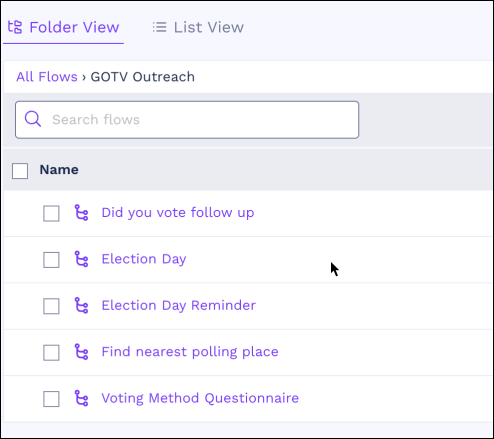
✔️ Nest folders by dragging one folder into another, or by clicking Add Folder from inside an existing folder.
✔️ Expand everything at once with Table Actions > Open All Folders when you need the full view.
Cleaning Up? There's a Shortcut.
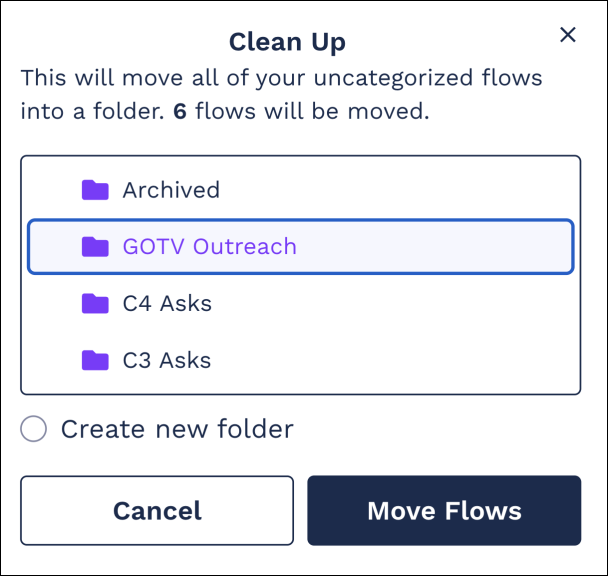
If you've got dozens of stray flows floating outside folders, the Clean Up feature is your new best friend, especially for that big archive folder.
From Table Actions, click Clean Up. You'll see every flow that doesn't currently live in a folder. From there, bulk-move them into an existing folder or create a brand new one.
Getting started:
You don't need a perfect taxonomy to start using folders. Pick one organizing principle that fits your campaign, issue area, program, or compliance bucket, and go. You can always restructure later.
Head to the Flows page and click Add Folder to get started! To learn more check out our docs.